There is a long-standing belief that Apple Macs do not get viruses. For years, Mac owners have felt safe skipping antivirus software entirely, trusting that their machine was somehow bulletproof.
But the reality has changed – and if you are still relying on that old assumption, your personal data could be at risk.
In this article, we will look at the real threats facing Mac users today, how to tell if your Mac has been compromised, and how to use TotalAV to scan for malware, remove threats, and keep your computer running at its best.
Can Apple Macs Get Viruses? The Truth About Mac Security
The short answer is yes, Macs can absolutely get viruses.
The idea that Macs are immune to viruses dates back to the early days of personal computing.
Back then, the vast majority of people used Windows, so hackers focused their efforts there. Macs had such a small share of the market that writing malware for them simply was not worth the effort.
That is no longer the case. Apple computers are now used by hundreds of millions of people worldwide, making them an attractive target for cybercriminals. As the Mac user base has grown, so has the number of threats designed specifically for macOS.
Apple does include some built-in security features.
XProtect is a basic malware detection tool that runs quietly in the background, and Gatekeeper checks that apps come from verified developers before allowing them to install. These are helpful, but they only cover a fraction of the threats out there.
Here is a number that might surprise you: only about 37% of macOS users have antivirus software installed. That means nearly two-thirds of Mac owners are browsing, banking, and shopping online without any dedicated security protection. Cybercriminals know this, and they are taking advantage of it.
If you have ever wondered, “Do I need an antivirus for Mac?” – the answer is a clear yes.
Common Threats Facing Mac Users Today
So what kinds of threats should Mac owners actually worry about? Here are the most common ones:
Trojans and Spyware
Trojans disguise themselves as legitimate software. You might think you are downloading a free tool or a media player, but hidden inside is a piece of malicious code that can steal passwords, monitor your activity, or give a hacker remote access to your system.
Phishing Scams
Phishing attacks do not target your operating system – they target you. These scams use fake emails, text messages, or websites that look almost identical to real ones. They trick you into entering your login details, credit card numbers, or other personal information.
Adware and Browser Hijackers
Adware floods your screen with unwanted advertisements and can seriously slow down your Mac. Browser hijackers go a step further, changing your homepage, redirecting your searches, and installing toolbars you never asked for.
Data Breaches
Even if your Mac itself is clean, your personal information could still be at risk. Data breaches happen when companies that store your details – email addresses, passwords, phone numbers – are hacked.
Signs Your Mac Might Be Hacked or Infected
Many Mac users do not realise something is wrong until significant damage has already been done. Here are the warning signs to watch for:
Your Mac is unusually slow or overheating. If simple tasks like opening a web browser or checking email cause your Mac to lag or the fans to spin loudly, something could be running in the background without your knowledge. Malware often uses your system’s resources to carry out its tasks, leaving less processing power for you.
You are seeing unexpected pop-ups. Random pop-up windows, especially ones urging you to “call tech support” or “download a security update,” are a major red flag. Legitimate macOS alerts do not work this way.
Your contacts are receiving strange messages from you. If friends or family say they have received odd emails or messages from your accounts, someone may have gained access. This can happen on any Apple device – if you are concerned about your phone as well, check out our guide on what to do if your iPhone is hacked.
If any of these sound familiar, it is time to run a full security scan.
Why You Need Antivirus Software for Your Mac
Apple’s built-in protections are a good starting point, but they were never designed to be a complete security solution. Think of XProtect and Gatekeeper as a basic lock on your front door. They will stop casual intruders, but a determined attacker needs something much stronger standing in their way.
A dedicated antivirus for Mac adds several layers of protection that Apple does not provide on its own:
- Real-time scanning that monitors files and downloads in real time, catching threats before they can cause harm.
- Web protection that warns you about dangerous websites, phishing pages, and online scams.
- Data breach monitoring that alerts you if your personal information has been exposed.
- On-demand scanning that lets you check your entire system for hidden threats whenever you want.
How to Scan and Protect Your Mac With TotalAV
Getting started with TotalAV on your Mac is straightforward, even if you are not particularly technical. Here is how to set it up and run your first scan:
Step 1: Download and Install TotalAV
Head over to the official site and install TotalAV on Mac. The installation process takes just a few minutes. Follow the on-screen prompts, grant the necessary permissions, and you will be up and running.
Step 2: Run a Full System Scan
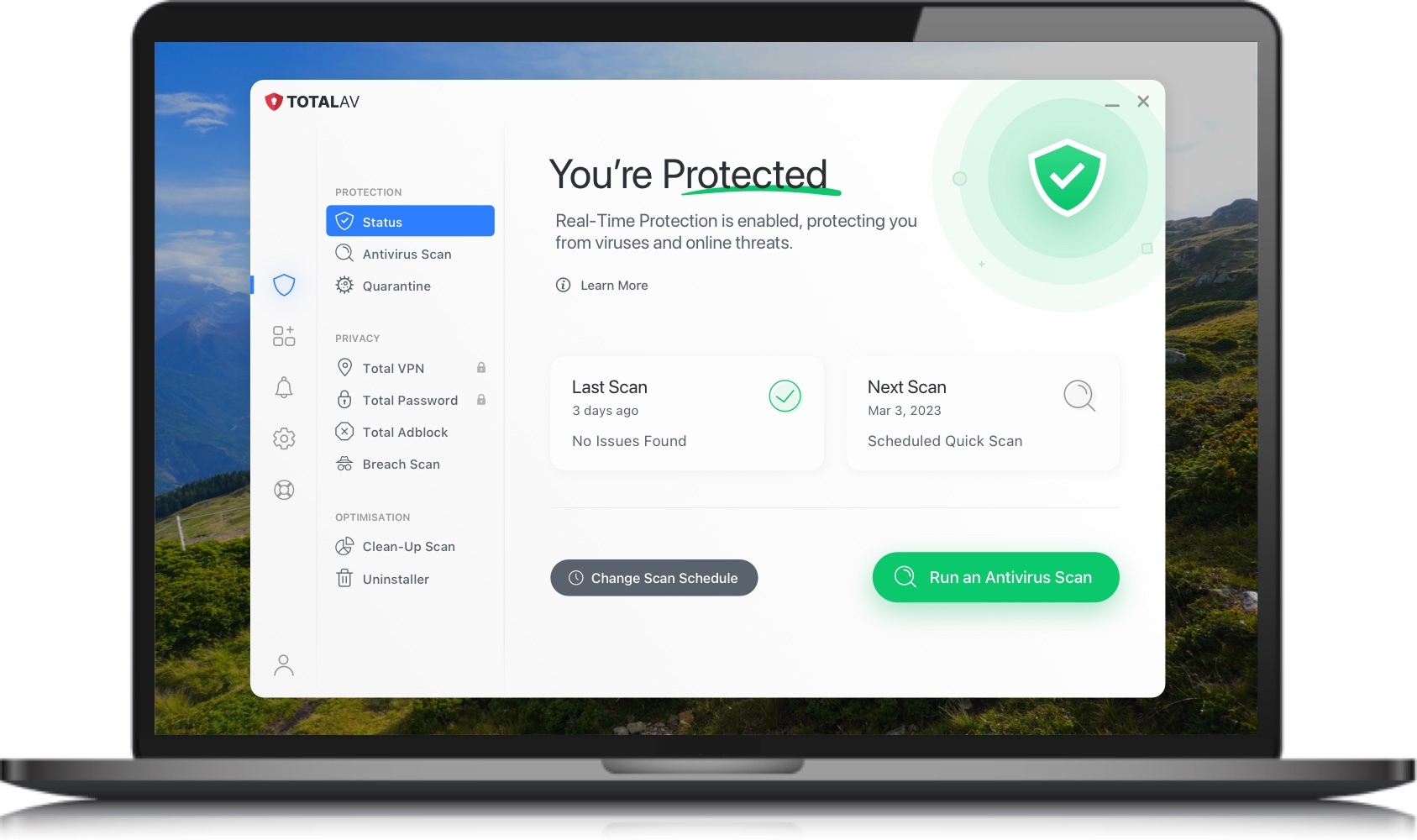
Once installed, open TotalAV and select Full System Scan from the main dashboard. This will check every file and folder on your Mac for viruses, trojans, adware, spyware, and other malicious software. The first scan may take a little while, depending on how much data is on your machine, but you can continue using your Mac while it works.
Step 3: Review Your Results and Quarantine Threats
When the scan finishes, TotalAV will show you a clear summary of what it found. Any detected threats will be listed with a recommendation for what to do next. The quarantine feature safely isolates infected files so they cannot cause any further damage. From there, you can choose to delete them permanently or restore them if you believe they were flagged by mistake.
Step 4: Set Up Scheduled Scans
You should not have to remember to run a scan manually every time. TotalAV lets you schedule automatic scans – daily, weekly, or at whatever interval works for you. Set it once, and your Mac will be checked regularly without you lifting a finger.

Stay Safe Online With Total WebShield and Data Breach Checks
Viruses and malware are not the only dangers online. Phishing scams and data breaches are just as dangerous – and often harder to spot.
Total WebShield
Total WebShield is built right into the TotalAV app and works as your first line of defence when browsing the web. It automatically identifies and blocks known phishing sites, scam pages, and malicious downloads before they load in your browser.
This is especially useful for phishing attacks, which are designed to look like real websites. A fake banking page or a fraudulent login screen can fool even experienced users. Total WebShield steps in and warns you before you interact with these pages, keeping your passwords and financial details safe.
Data Breach Check
TotalAV also includes a Data Breach Check feature. Simply enter your email address, and it will search through databases of known breaches to see if your personal details have been leaked. If your information has been exposed, you will get clear advice on what to do next – such as changing your passwords immediately and enabling two-factor authentication on affected accounts.
Speed Up Your Mac With Built-In Optimisation Tools
TotalAV is not just an antivirus for Mac – it also comes with a full set of tools to help your computer run faster and free up storage space. Over time, every Mac accumulates clutter that takes up room and slows things down. Here is how TotalAV helps:
Junk Cleaner
Your Mac stores temporary files, old caches, and system logs that serve no purpose after a while. The Junk Cleaner finds and removes this clutter in seconds, freeing up storage space you did not know you had.
Duplicate File Finder
It is surprisingly easy to end up with multiple copies of the same photos, documents, or downloads scattered across your hard drive. The Duplicate File Finder scans for identical files and lets you decide which copies to keep and which to remove.
Large and Old File Locator
Not sure what is eating up all your storage? The Large and Old File Locator identifies the biggest files on your Mac and highlights ones you have not opened in a long time. It is a quick way to reclaim gigabytes of space by clearing out files you no longer need.
Browser Cleaner
Every website you visit leaves behind cached data, cookies, and browsing history. Over time, this builds up and can slow down your browser. The Browser Cleaner wipes this data across all your installed browsers – giving you a faster, cleaner browsing experience and a bit more privacy too.
App Uninstaller
Dragging an app to the Trash on a Mac does not always remove everything. Many applications leave behind hidden files, preferences, and support folders that continue to take up space. The App Uninstaller fully removes unwanted applications along with all their leftover files, so nothing gets left behind.
Protect Your Mac and Keep It Running Like New
The days of Macs being “safe by default” are behind us. Modern cyber threats target every platform, and macOS is no exception. From trojans and spyware to phishing scams and data breaches, the risks are real – and they are growing.
If you have not taken steps to protect your Mac, now is the time. Install TotalAV on Mac, run your first scan, and see for yourself how simple it is to stay protected.
Your Mac works hard for you – make sure it is looked after in return.