La maggior parte di noi ha sentito parlare della modalità incognito, ma cosa fa effettivamente?
E cosa più importante, cosa fa non farai? Se hai mai pensato che aprire una finestra di navigazione in incognito ti renda invisibile online, non sei solo.
Tuttavia, la verità è un po' più complicata di così. Non è né completamente sicura né privata.
In questo articolo ti guideremo attraverso tutto ciò che devi sapere sulla modalità di navigazione in incognito, incluso come usarla su tutti i principali browser e dispositivi, da cosa ti protegge e quali sono i suoi limiti.
Cos'è la modalità Incognito?
La modalità incognito è una funzione di privacy integrata nel tuo browser web. Quando apri una finestra in incognito, il tuo browser smette di salvare determinati dati di quella sessione.
Una volta chiusa la finestra, questi dati vengono cancellati dal tuo dispositivo come se la sessione non fosse mai avvenuta.
Browser diversi hanno nomi diversi per questa funzionalità:
- Google Chrome chiama Modalità Incognito
- Mozilla Firefox chiama Navigazione in incognito
- Apple Safari chiama Finestra privata
- Microsoft Edge chiama Navigazione in incognito
- Opera chiama Navigazione in incognito
Non importa come viene chiamata, l'idea di base è la stessa. Quando si apre una di queste finestre, il browser crea una sessione temporanea.
Nessuna cronologia viene registrata localmente, i cookie vengono eliminati alla chiusura della finestra e i file temporanei vengono rimossi. È come usare un browser nuovo di zecca che dimentica tutto nel momento in cui hai finito.
Cosa fa veramente la modalità incognito?
Analizziamo esattamente cosa succede quando navighi in modalità di navigazione in incognito:
- La cronologia di navigazione non viene salvata. Dopo aver chiuso la finestra di navigazione in incognito, non comparirà alcuna traccia dei siti web che hai visitato nella cronologia del tuo browser. Chiunque prenda in mano il tuo dispositivo dopo di te non vedrà le pagine su cui eri.
- I cookie e i dati del sito sono stati cancellati. I siti web utilizzano i cookie per ricordare chi sei, cosa c'è nel tuo carrello e quali annunci mostrarti. In modalità di navigazione in incognito, i cookie sono attivi solo durante la tua sessione e vengono eliminati nel momento in cui chiudi la finestra. Ciò significa anche che verrai disconnesso da tutti gli account a cui ti sei collegato.
- I dati del modulo e le password non vengono memorizzati. Tutto ciò che digiti nei moduli di accesso, nelle barre di ricerca o nelle pagine di checkout durante una sessione in incognito non viene memorizzato dal browser.
- Gli altri utenti sul tuo dispositivo non possono vedere la tua attività. Se condividi un computer con familiari o colleghi, la modalità di navigazione in incognito mantiene privati i tuoi contenuti da loro.
In breve, la modalità incognito è uno strumento per la privacy locale.
Mantiene i tuoi dati di navigazione fuori dal tuo dispositivo.
Cosa Non Fa la Modalità Incognito
Modalità di navigazione in incognito non posso fare
- Non nasconde la tua attività al tuo provider di servizi Internet (ISP). Il tuo ISP può ancora vedere ogni sito web a cui ti connetti, anche in modalità di navigazione in incognito. Lo stesso vale per il tuo datore di lavoro o per la scuola se stai utilizzando la loro rete.
- I siti web possono ancora identificarti. Il tuo indirizzo IP è visibile a ogni sito che visiti e molti siti web utilizzano una tecnica chiamata browser fingerprinting per riconoscerti in base alle impostazioni del tuo dispositivo, alle dimensioni dello schermo, ai font installati e ad altri dettagli.
- Non ti protegge da malware, virus o attacchi di phishing. La modalità di navigazione in incognito non ha nulla a che fare con la sicurezza. Se fai clic su un link dannoso o scarichi un file infetto, il tuo dispositivo è vulnerabile tanto quanto lo sarebbe in una normale sessione di navigazione.
- Scarica e segnalibri sono mantenuti. Qualsiasi file scaricato o segnalibro salvato durante una sessione in incognito rimarrà sul tuo dispositivo dopo la chiusura della finestra. Solo la cronologia di navigazione e i cookie verranno cancellati.
Come aprire la modalità incognito su ogni browser
Ecco come avviare una sessione di navigazione in incognito in ciascuno dei principali browser desktop.
Modalità Incognito di Chrome
Apri Google Chrome, fai clic sul menu a tre puntini nell'angolo in alto a destra e seleziona Nuova finestra di navigazione in incognito. You can also use the keyboard shortcut:
- Windows/Linux: Ctrl + Shift + N
- Mac: Cmd + Shift + N
You’ll know you’re in incognito mode when you see the dark-themed window with the hat-and-glasses icon. For more details, visit the Google Chrome Help Centre.
Firefox Private Browsing
In Mozilla Firefox, click the three-line menu in the top-right corner and select New Private Window. The keyboard shortcut is:
- Windows/Linux: Ctrl + Shift + P
- Mac: Cmd + Shift + P
A purple mask icon will appear in the corner of the browser to confirm you’re in a private session. You can learn more at Mozilla Support.
Safari Private Window
On a Mac, open Safari and go to File > New Private Window, or use the shortcut:
- Mac: Cmd + Shift + N
Safari will show “Private” in the address bar to let you know the feature is active. Visit Apple Support for step-by-step instructions.
Microsoft Edge InPrivate Browsing
In Microsoft Edge, click the three-dot menu and choose New InPrivate Window. The shortcut is:
- Windows: Ctrl + Shift + N
- Mac: Cmd + Shift + N
A blue “InPrivate” label will appear next to the address bar. Check out Microsoft Support for more information.
Opera Private Browsing
In Opera, click the menu and select New Private Window, or press:
- Windows/Linux: Ctrl + Shift + N
- Mac: Cmd + Shift + N
You’ll see a sunglasses icon confirming your private session. See Opera Help for full details.
How to Use Incognito Mode on iPhone and Android
Private browsing isn’t limited to desktop computers. Here’s how to go incognito on your phone or tablet.
iPhone Incognito Mode (Safari)
- Open Safari on your iPhone.
- Tap the tabs icon in the bottom-right corner (it looks like two overlapping squares).
- Swipe to the Private tab group or tap Private at the bottom of the screen.
- Tap the + button to open a new private tab.
Your address bar and browser interface will turn dark, letting you know you’re browsing privately. For a full walkthrough, visit Apple Support.
iPhone Incognito Mode (Chrome App)
- Open the Chrome app on your iPhone.
- Tap the three dots (•••) at the bottom of the screen.
- Tap New Incognito Tab.
Android Incognito Mode
- Open the Chrome app on your Android device.
- Tap the three dots in the top-right corner.
- Tap New Incognito Tab.
The screen will turn dark with the incognito hat-and-glasses icon. You can find more help at Google Support.
A quick reminder: always close all your incognito or private tabs when you’re finished. Your session data is only cleared once every private tab is closed. If you leave one open, your cookies and session information remain active.
Is Incognito Mode Safe? What You Can and Cannot Do Safely
The answer depends on what you’re trying to do.
When Incognito Mode Is Helpful
- Shopping for gifts. If you share a device and don’t want your partner or family member to see that you’ve been browsing for a birthday present, incognito mode keeps it off your history.
- Using a shared or public computer. If you need to log into your email or bank account on a computer that isn’t yours, incognito mode helps make sure your login details aren’t saved after you close the window.
- Avoiding personalised pricing. Some travel and shopping websites adjust their prices based on your browsing behaviour. Using incognito mode removes your cookies, which may help you see more neutral pricing.
- Keeping work and personal browsing separate. If you use the same browser for both, incognito mode gives you a clean session without mixing up your accounts or history.
- Checking how a webpage looks without cached data. Web developers and content creators often use incognito mode to see a fresh version of a site, free from cached files or saved logins.
When Incognito Mode Is NOT Enough
- Hiding your online activity from your ISP or employer. Incognito mode only clears data locally on your device. Your ISP, network administrator, or employer can still monitor the sites you connect to.
- Protecting yourself from hackers or cyber threats. Private browsing offers zero protection against malicious websites, infected downloads, or phishing scams. You’re just as exposed in incognito mode as you are in a regular window.
- Staying fully anonymous online. Websites can still see your IP address, and techniques like browser fingerprinting can identify your device even without cookies. Incognito mode does not make you anonymous.
The bottom line: Incognito mode is great for local privacy — keeping your browsing away from other people who use your device. But it does very little to protect you from outside threats or third-party tracking.
How to Stay Truly Private and Secure Online
If you want real privacy and security, incognito mode should be just one part of your approach. Here’s what you can do to protect yourself more fully.
Utilizzare una VPN
A Virtual Private Network (VPN) encrypts your internet connection and masks your IP address. This means your ISP, network administrators, and the websites you visit can’t easily see what you’re doing online. When you pair a VPN with incognito mode, you get local privacy e network-level protection.
Want to learn more? Read our guide on what is a VPN and how it works.
Install Antivirus Software
Since incognito mode does nothing to stop malware, phishing, or other online threats, you need a separate layer of security. A good antivirus program runs in the background, scanning for threats and blocking dangerous files before they can harm your device.
Check out the full list of TotaleAV features to see how antivirus protection keeps you safe, whether you’re browsing privately or not.
Add Extra Privacy Tools
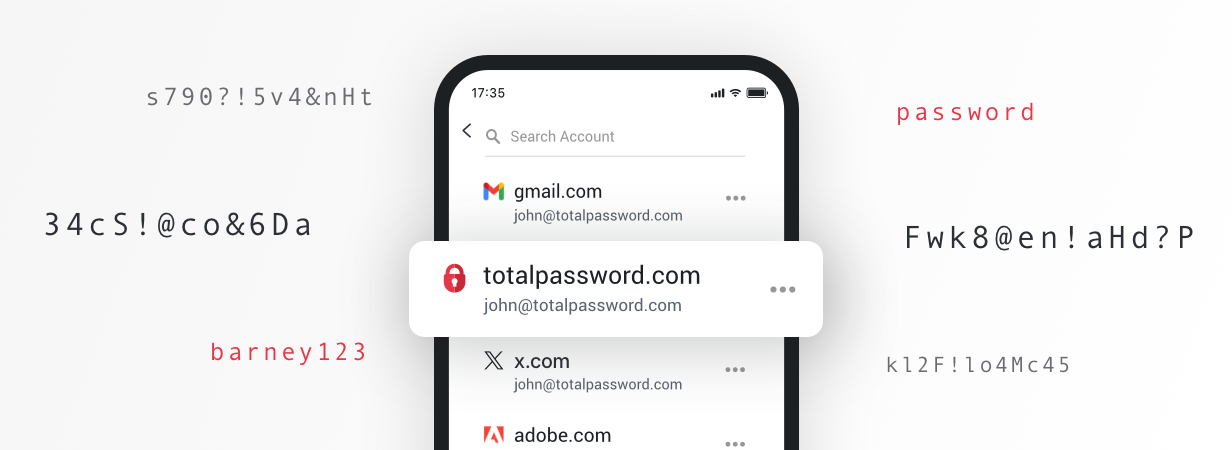
For a more complete setup, consider adding an ad blocker to stop intrusive ads and tracking scripts, and a password manager to generate and store strong, unique passwords for every account. These tools work alongside incognito mode and a VPN to give you a well-rounded defence against the most common online risks.
Browse Online with Confidence
Incognito mode is a helpful tool for keeping your browsing private from other people who share your device.
That said, it’s only a first step.
It won’t protect you from your ISP tracking your activity, websites identifying your device, or cyber threats landing on your computer.
For true online privacy, pair your private browsing with Totale VPN to encrypt your connection and hide your IP address from ISPs, advertisers, and snoopers. When your internet traffic is encrypted, not even your network provider can see what you’re doing online.
And for complete protection, use TotaleAV. It comes with antivirus scanning, real-time threat detection, and identity monitoring. You’ll have the peace of mind that comes from knowing your devices and personal data are protected on every level.
Stay private. Stay protected. Browse with confidence.